Setup
1
Install Pear Desktop
Download and install Pear Desktop (the YouTube Music desktop client) from its releases page.
2
Enable the API server plugin
In Pear Desktop, open Settings → Plugins and enable the API Server plugin. Confirm the port matches the one Request+ expects (default
26538).3
Select YouTube Music in Request+
In Request+, open Settings → Music → YouTube Music. After selecting the platform, YouTube Music will show the following prompt by default. 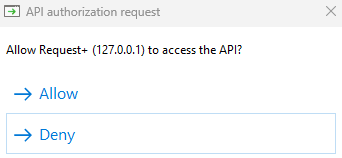
4
Play a track
Start playback in Pear Desktop. Request+ should pick up the track and display it in the Now Playing panel and overlay.
Supported actions
- Play / pause
- Skip / previous
- Seek
- Volume
- Shuffle / repeat
- Like / dislike
- Queue requested tracks
Troubleshooting
Request+ can't connect
Request+ can't connect
Make sure the API Server plugin is enabled and Pear Desktop is running. Check your firewall isn’t blocking localhost connections on the configured port.
Tracks don't queue
Tracks don't queue
Some video-only results aren’t queueable. Use song results (with the music note icon) where possible.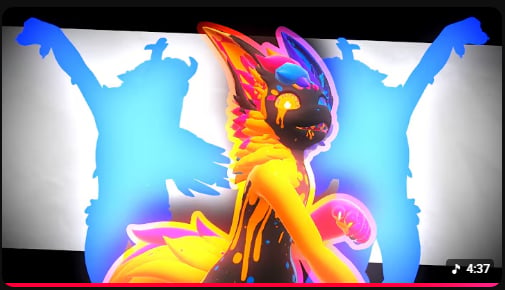
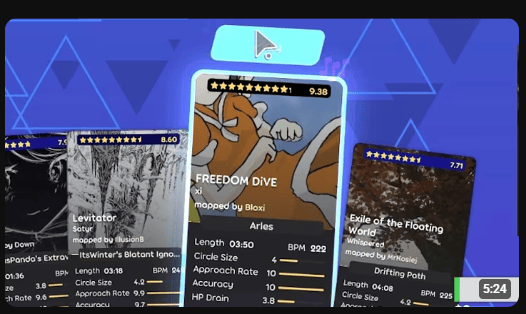
You can check for videos at https://music.youtube.com or going to YouTube’s main site and looking at the video objects, if they show the music icon, they are compatible. The top is one that works and the bottom shows the wrong type of video.