
You need the desktop Spotify client. Web Player and mobile are not supported.
Setup
1
Install Spicetify
2
Install the Request+ extension
In the Spotify client, open the Marketplace tab. It should look like a shopping cart icon.\
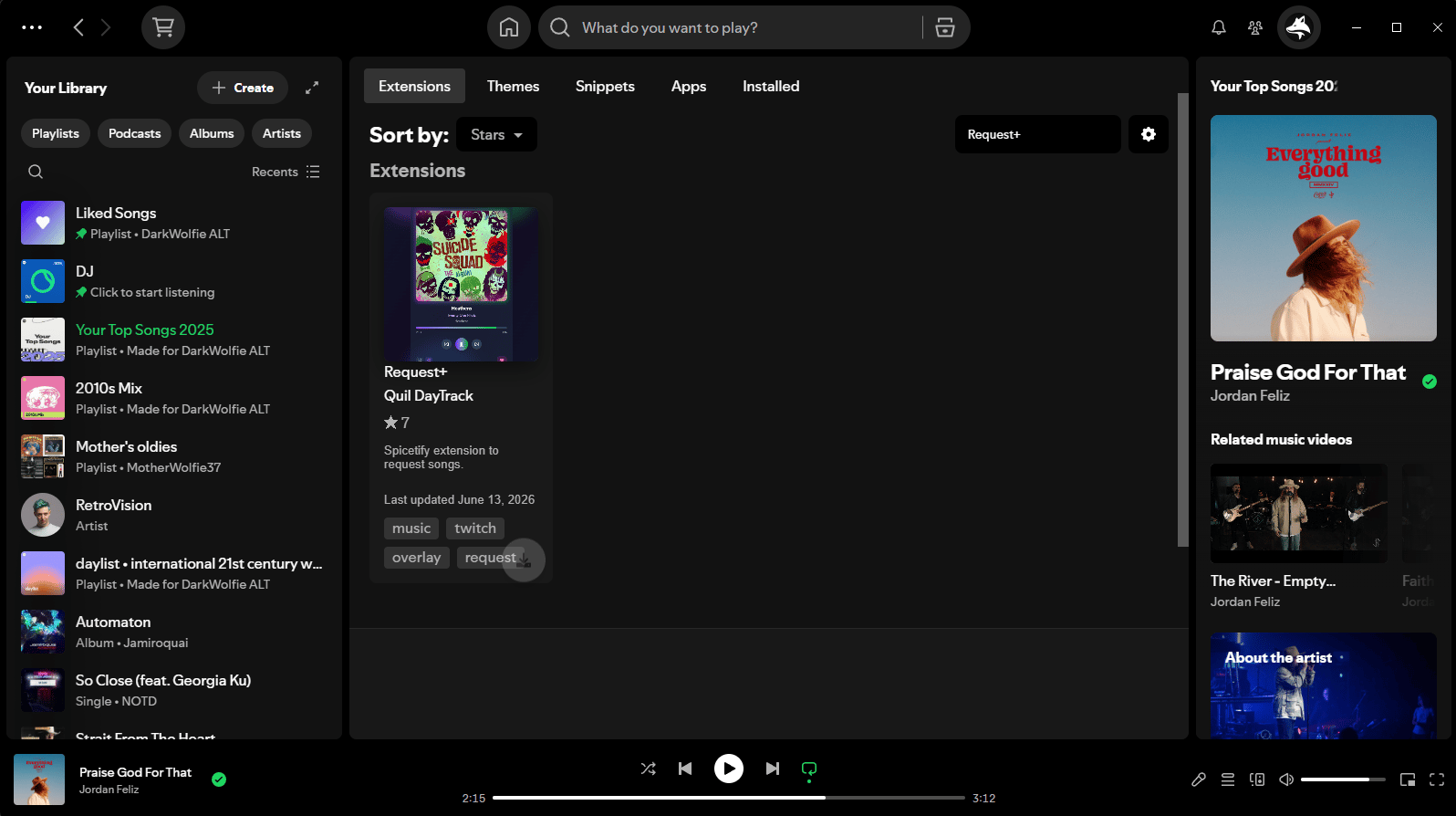
This may not show instantly, click the load more button if you can’t see our extension!
3
Restart Spotify
Spicetify should prompt you to reload for the extension, go ahead and do that, it’s needed to load the code!
4
Verify the connection
Back in Request+, the Spotify current track object should populate the now playing screen, as seen below!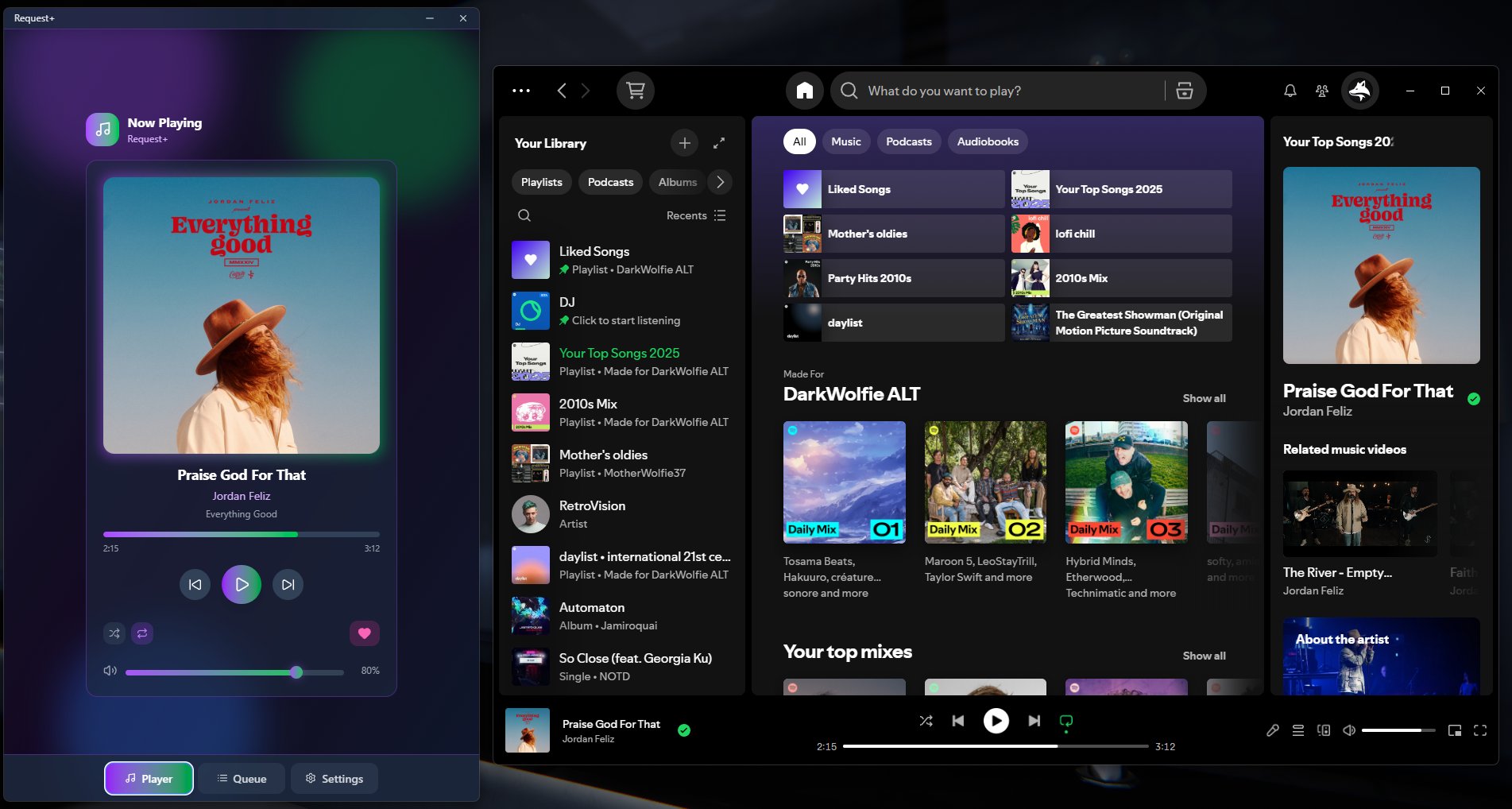
Supported actions
- Play / pause
- Skip / previous
- Seek
- Volume
- Shuffle / repeat
- Like / unlike
- Queue requested tracks
Troubleshooting
Player Object not properly displaying
Player Object not properly displaying
This could be that you haven’t started playing or the application failed to start it’s websocket server, check out <link-here>
Spicetify apply fails
Spicetify apply fails
Run
spicetify backup apply as your normal user account, not as administrator. See the Spicetify troubleshooting docs.Extension disappears after a Spotify update
Extension disappears after a Spotify update
Spotify updates can overwrite Spicetify. Re-run
spicetify update or spicetify apply after each update.