> ## Documentation Index
> Fetch the complete documentation index at: https://docs.requestplus.xyz/llms.txt
> Use this file to discover all available pages before exploring further.
# YouTube Music (Pear)
> Connect Request+ to YouTube Music using Pear Desktop.
Request+ integrates with YouTube Music through the [Pear Desktop](https://github.com/th-ch/youtube-music) client, which exposes a local API bridge that Request+ uses to read and control playback.
## Setup
Download and install Pear Desktop (the YouTube Music desktop client) from its [releases page](https://github.com/th-ch/youtube-music/releases).
In Pear Desktop, open **Settings → Plugins** and enable the **API Server** plugin. Confirm the port matches the one Request+ expects (default `26538`).
In Request+, open **Settings → Music → YouTube Music**. After selecting the platform, YouTube Music will show the following prompt by default.
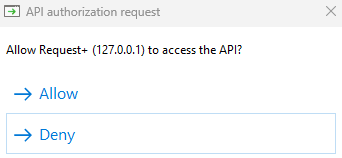 Click "**Allow**" to give Request+ a API token for the YouTube Local API
Start playback in Pear Desktop. Request+ should pick up the track and display it in the Now Playing panel and overlay.
## Supported actions
* Play / pause
* Skip / previous
* Seek
* Volume
* Shuffle / repeat
* Like / dislike
* Queue requested tracks
## Troubleshooting
Make sure the **API Server** plugin is enabled and Pear Desktop is running. Check your firewall isn't blocking localhost connections on the configured port.
Some video-only results aren't queueable. Use song results (with the music note icon) where possible.
You can check for videos at [https://music.youtube.com](https://music.youtube.com) or going to YouTube's main site and looking at the video objects, if they show the music icon, they are compatible. The top is one that works and the bottom shows the wrong type of video.
Click "**Allow**" to give Request+ a API token for the YouTube Local API
Start playback in Pear Desktop. Request+ should pick up the track and display it in the Now Playing panel and overlay.
## Supported actions
* Play / pause
* Skip / previous
* Seek
* Volume
* Shuffle / repeat
* Like / dislike
* Queue requested tracks
## Troubleshooting
Make sure the **API Server** plugin is enabled and Pear Desktop is running. Check your firewall isn't blocking localhost connections on the configured port.
Some video-only results aren't queueable. Use song results (with the music note icon) where possible.
You can check for videos at [https://music.youtube.com](https://music.youtube.com) or going to YouTube's main site and looking at the video objects, if they show the music icon, they are compatible. The top is one that works and the bottom shows the wrong type of video.