> ## Documentation Index
> Fetch the complete documentation index at: https://docs.requestplus.xyz/llms.txt
> Use this file to discover all available pages before exploring further.
# Spotify
> Connect Request+ to Spotify using the Spicetify extension.
Request+ integrates with the official Spotify desktop client through a [Spicetify](https://spicetify.app) extension that exposes a local WebSocket bridge to the Request+ app.
You need the **desktop** Spotify client. Web Player and mobile are not supported.
## Setup
Follow the official [Spicetify installation guide](https://spicetify.app/docs/getting-started) for your OS.
Verify it works:
```bash theme={null}
spicetify -v
```
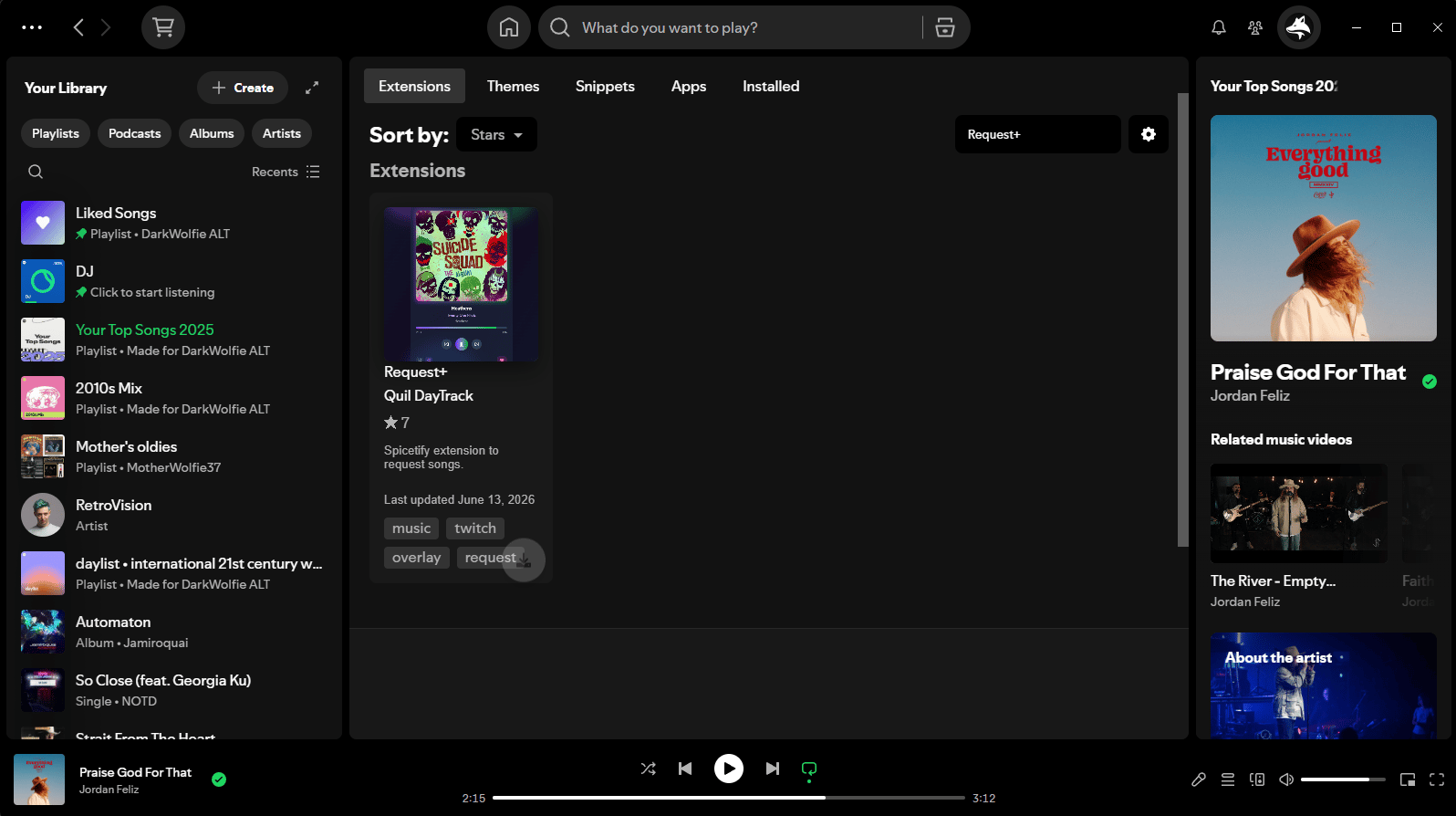
In the **Spotify** client, open the Marketplace tab. It should look like a shopping cart icon.\\
 In the marketplace, search for "**Request+**", you should see the following entry.
This may not show instantly, click the load more button if you can't see our extension!
In the marketplace, search for "**Request+**", you should see the following entry.
This may not show instantly, click the load more button if you can't see our extension!
 Spicetify should prompt you to reload for the extension, go ahead and do that, it's needed to load the code!
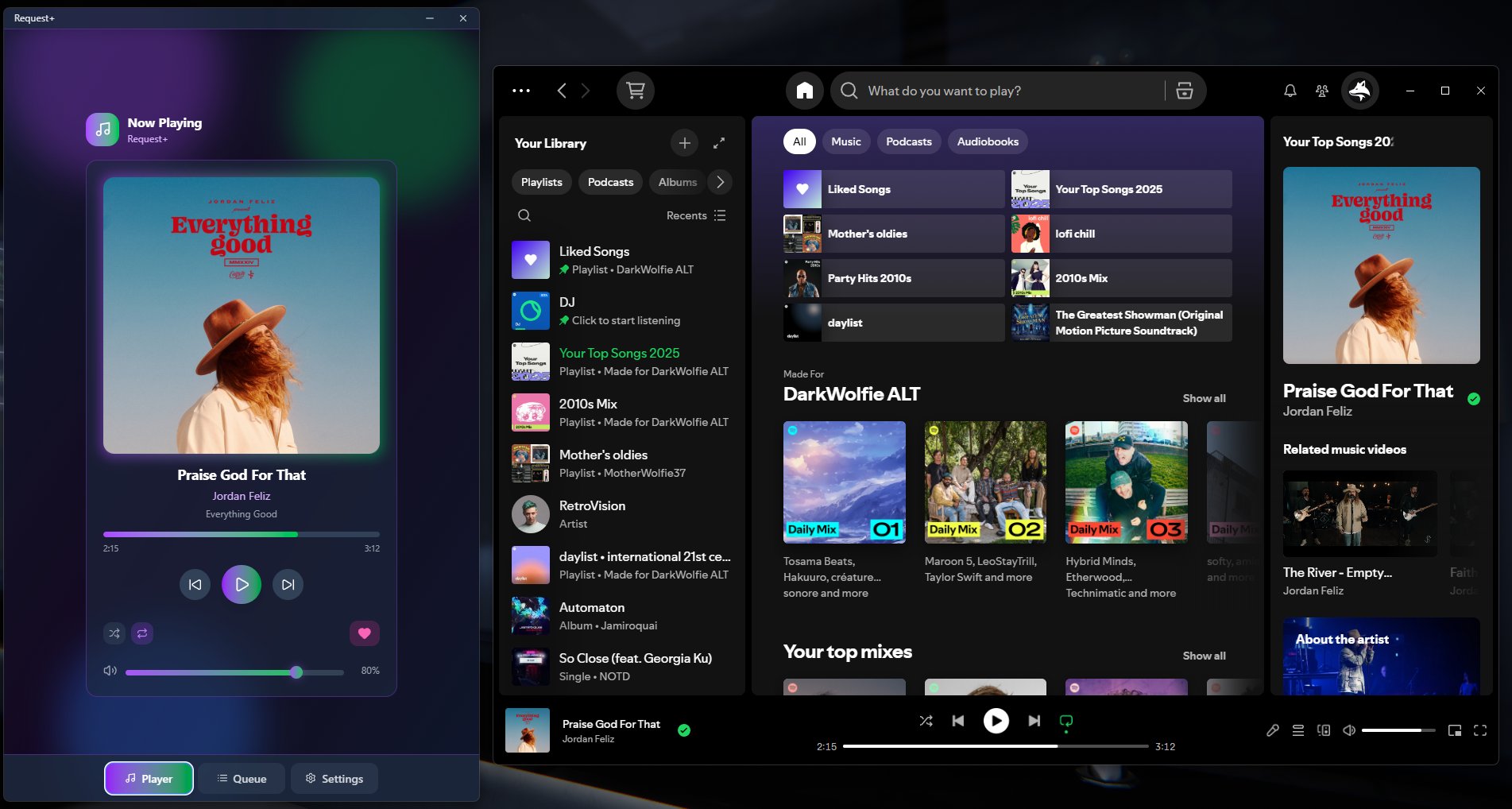
Back in Request+, the **Spotify** current track object should populate the now playing screen, as seen below!
Spicetify should prompt you to reload for the extension, go ahead and do that, it's needed to load the code!
Back in Request+, the **Spotify** current track object should populate the now playing screen, as seen below!
 ## Supported actions
* Play / pause
* Skip / previous
* Seek
* Volume
* Shuffle / repeat
* Like / unlike
* Queue requested tracks
## Troubleshooting
This could be that you haven't started playing or the application failed to start it's websocket server, check out \
Run `spicetify backup apply` as your normal user account, not as administrator. See the [Spicetify troubleshooting docs](https://spicetify.app/docs/faq).
Spotify updates can overwrite Spicetify. Re-run `spicetify update` or `spicetify apply` after each update.
## Supported actions
* Play / pause
* Skip / previous
* Seek
* Volume
* Shuffle / repeat
* Like / unlike
* Queue requested tracks
## Troubleshooting
This could be that you haven't started playing or the application failed to start it's websocket server, check out \
Run `spicetify backup apply` as your normal user account, not as administrator. See the [Spicetify troubleshooting docs](https://spicetify.app/docs/faq).
Spotify updates can overwrite Spicetify. Re-run `spicetify update` or `spicetify apply` after each update.